
For years, the best answer for Commodore emulation on a Mac was technically correct and practically awkward: install VICE, accept the cross-platform desktop stack, and live with an interface that never quite felt like a Mac app.
That is finally changing.
mac VICE is a native macOS front end for the real VICE emulator core. It keeps the part that matters most, the mature Commodore emulation engine, and rebuilds the experience around modern macOS: SwiftUI, Metal, native menus, native windows, signed Apple Silicon DMGs, notarization, Sparkle updates, and app targets that feel like things you can leave in /Applications.
The source lives on the macos/native-metal branch, and the latest release is published on GitHub Releases.
The Goal
VICE is already the emulator that serious Commodore users trust. I did not want to fork the emulation core or replace the hard-won accuracy of the upstream project. The goal was more specific: make VICE feel excellent on macOS.
That means no X11 requirement for the day-to-day app experience. No GTK-shaped control panels pretending to be Mac windows. No “it runs on macOS” as the finish line. mac VICE is built as a set of native Mac apps, one per machine, with the familiar VICE executable names:
x64sc.appfor the cycle-exact Commodore 64.x128.appfor the Commodore 128.xvic.appfor the VIC-20.xpet.appfor the PET family.xplus4.app,xc16.app,xc232.app, andxv364.appfor the Plus/4 family.vsid.appfor SID playback.
Each app boots with the right model, machine defaults, ROMs, drive behavior, video options, and machine-specific settings. The UI does not force a PET, a C128, and a Plus/4 through one generic emulator settings blob. The differences are the point.
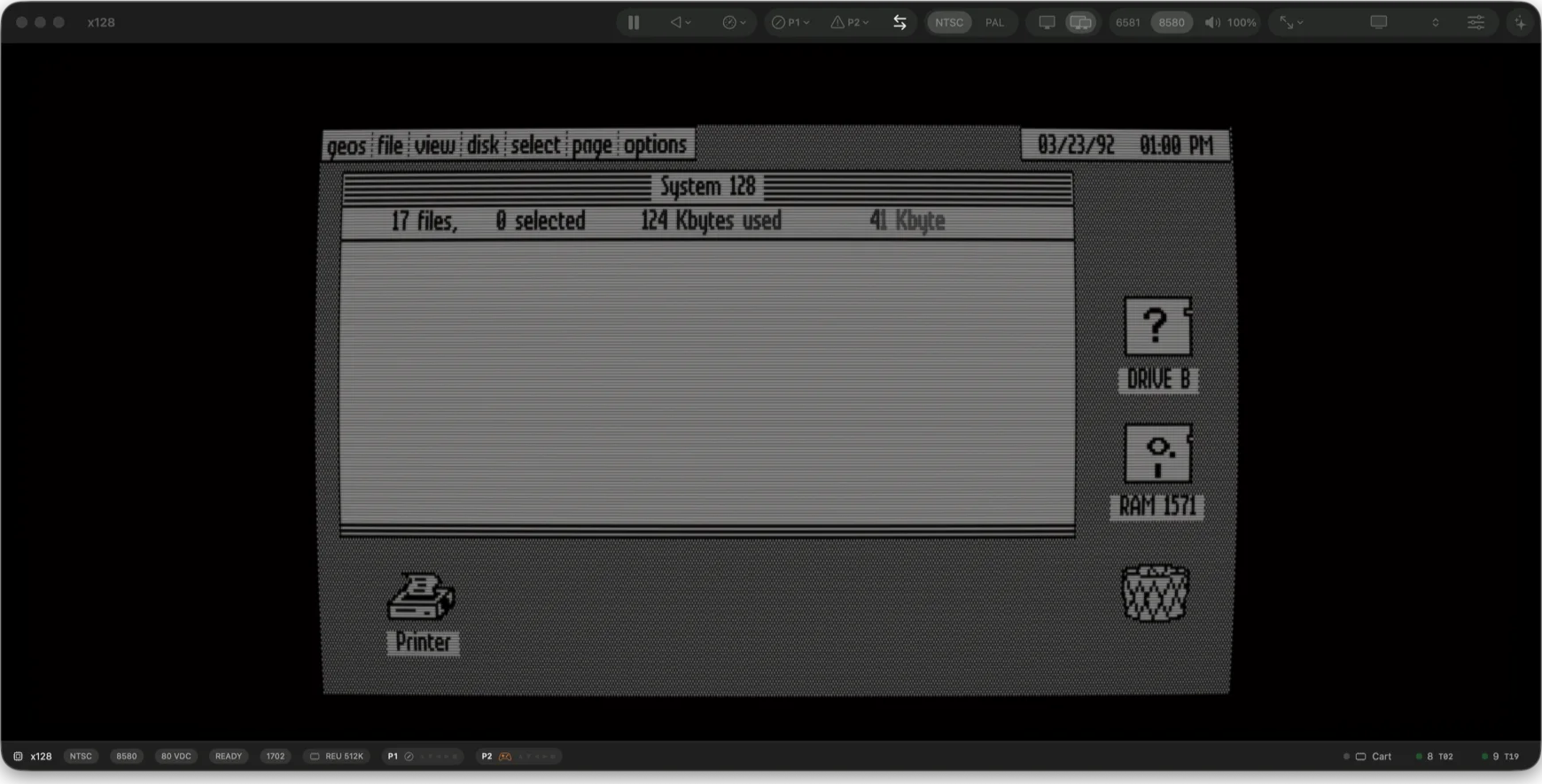
x128 running GEOS 128 in 80-column VDC mode.
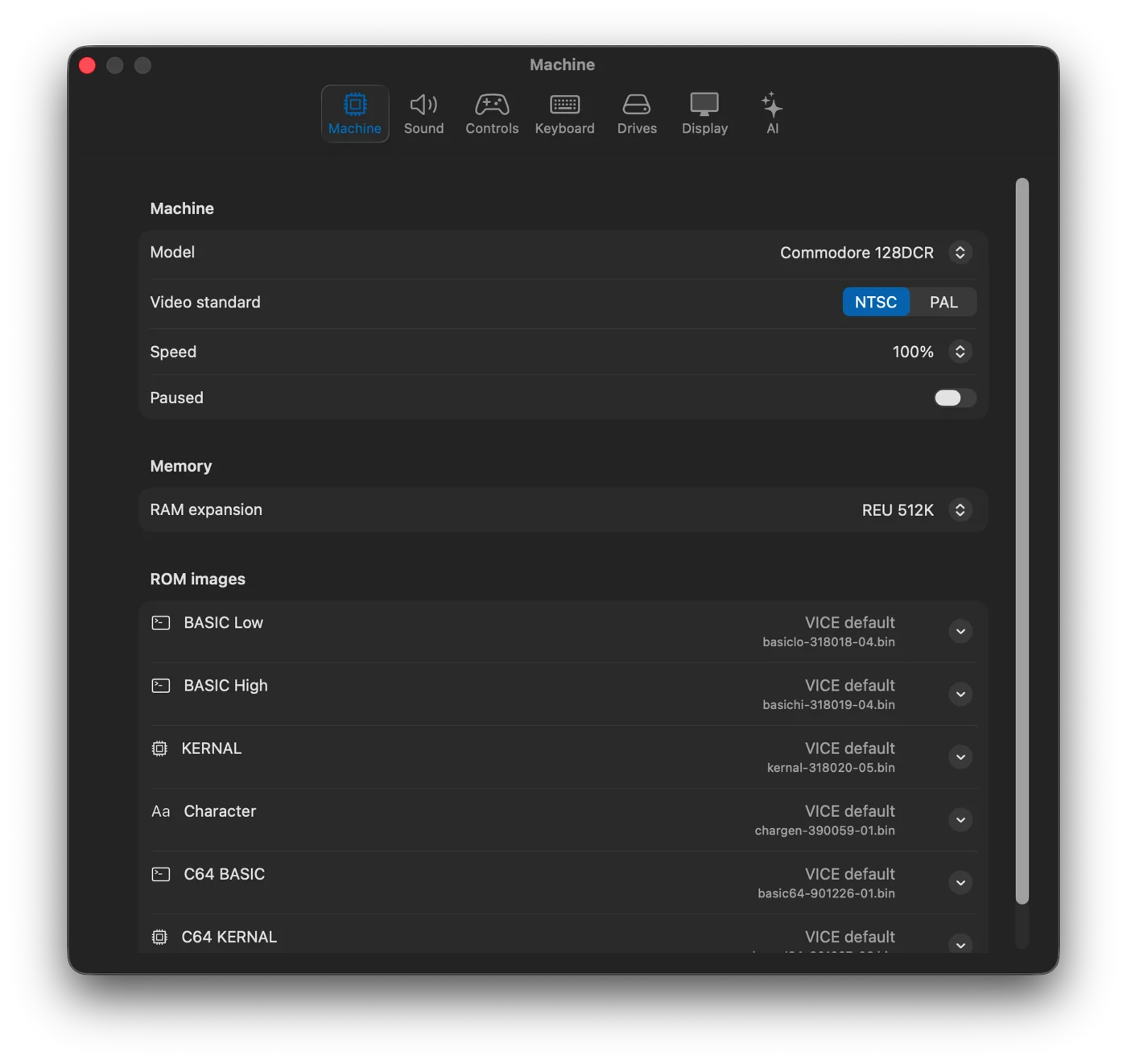
Machine-aware settings instead of a lowest-common-denominator panel.
Metal Makes It Feel Immediate
The display path is rendered through Metal. That matters for performance, but it also matters for feel. The emulator frame delivery is low-latency, the window behaves like a Mac window, and the display options are part of the app instead of something bolted on from another toolkit.
There are display presets for a clean LCD view, Commodore 1702/1084-style CRT output, PVM, RF, green phosphor, amber phosphor, and white phosphor. The underlying controls expose scanlines, mask intensity, curvature, halation, persistence, saturation, and warmth. You can make the emulator crisp, soft, nostalgic, practical, or ugly in exactly the way a real composite display could be ugly.
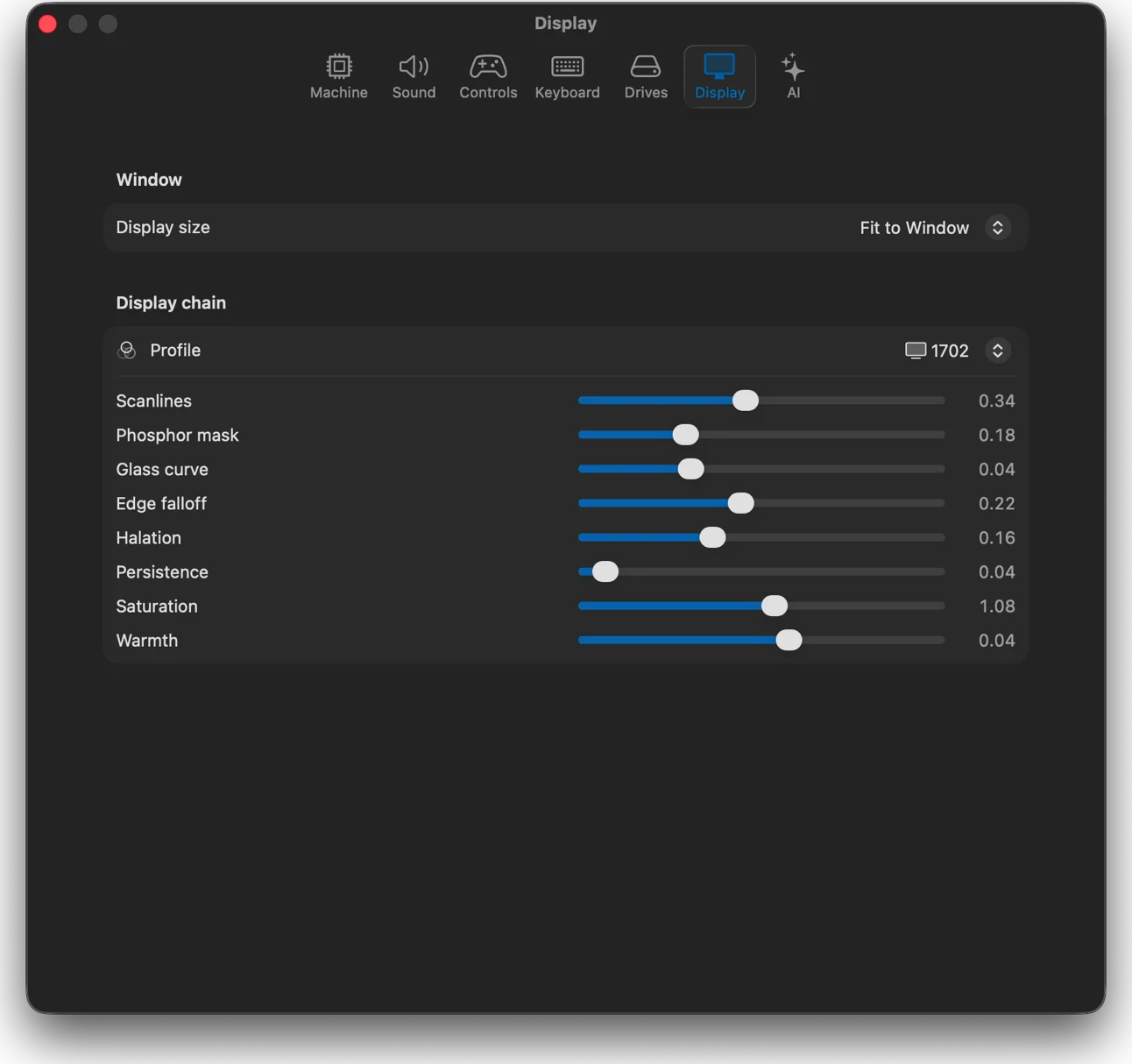
Metal display output with adjustable CRT-style filtering.
The Mac Stuff Matters
The obvious emulator features are there: pause, resume, reset, speed control, sound, volume, control ports, keyboard joystick mapping, game controller mapping, drive reset, disk eject, true-drive mode, fast disk access, paste-into-emulator, PRG/T64/TAP handling, cartridge attachment, and VSF snapshots.
But the point of a native app is that the boring parts should work too. Drag files onto the app. Use standard open panels. Keep recent documents. Save snapshots from Mac dialogs. Install a signed DMG. Get updates through Sparkle. Let Gatekeeper see a Developer ID signature and a notarized app instead of asking users to work around the operating system.
That is the difference between a port and something people can actually recommend to normal Mac users.
A Real Disk Image Manager
The feature that surprised me by becoming central is the disk image manager. Commodore disk images are not just files you attach to drive 8 and forget. You inspect them, copy things in and out, rebuild them, rename entries, clean up old disks, and sometimes do weird GEOS-specific surgery because that is where the pain lives.
mac VICE includes a native disk image manager for D64-family block images:
- Open D64, D67, D71, D80, D81, and D82 images.
- Create blank images with a disk name and ID.
- Inspect directories, sectors, BAM allocation, and image geometry.
- Import PRG files, export files, rename files, and delete files.
- Clone optimized rebuilt images when the original layout allows it.
- Package linked GEOS PRGs as GRC/CVT files and install them onto GEOS disks.
- Patch GEOS input-driver ordering so a 1351 mouse can become the default driver.
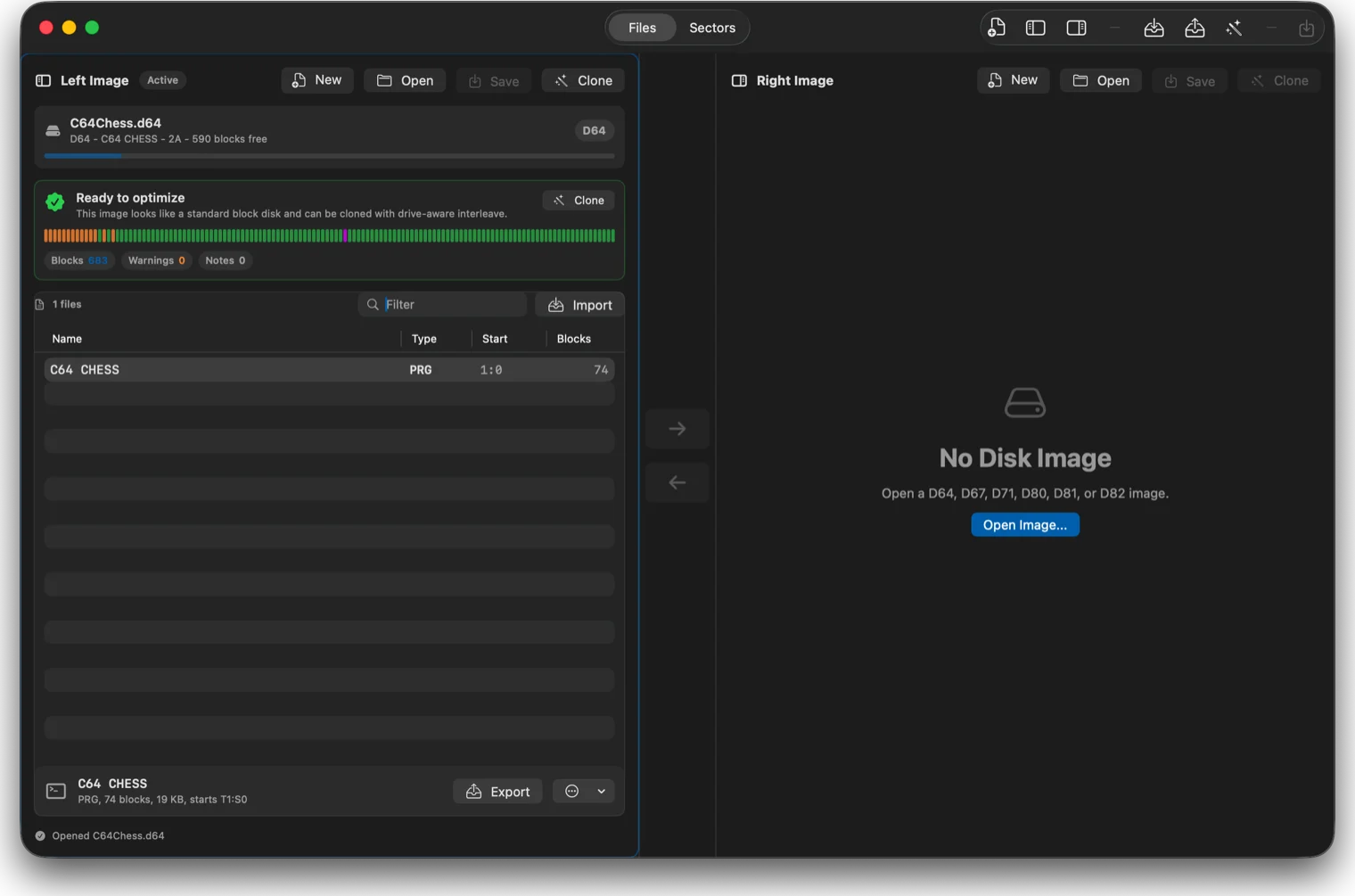
The native Disk Image Manager can inspect, edit, rebuild, and save Commodore disk images.
That last GEOS work is not theoretical. This branch also includes a small commodore-utils/ workspace. The first utility is a GEOS auto-exec driver that reads VICE’s DS1307 userport RTC and sets the GEOS date and time during boot. With system-time sync enabled, GEOS can boot with the Mac’s current clock instead of making you fix the date by hand every time.
MacVICEKit: The SDK Hiding Inside the App
The app is the visible part, but the part I think will matter longer is MacVICEKit.
MacVICEKit is the Swift package that the Mac apps use internally. It exposes the shared engine bridge, Metal display view, audio and video frame sources, input forwarding, media attachment, snapshots, and monitor/debugger APIs. In other words, it gives you a supported way to build your own Mac tool around the VICE core without scraping windows, shelling out to a command-line emulator, or copying private app internals.
The release pipeline publishes a self-contained SDK archive alongside the DMG:
https://github.com/barryw/vice-macos/releases/latest/download/MacVICEKit-latest-arm64.zip
That archive contains the Swift API, C bridge, tests, documentation, a signed MacVICERuntime.xcframework, bundled runtime dependencies, VICEData, and a manifest tying the runtime back to the source build.
The minimal engine setup is intentionally small:
import MacVICEKit

let configuration = MacVICEMachineConfiguration(
    machine: .c64sc,
    runtimeLocation: .automatic
)
let session = MacVICEEngineSession(configuration: configuration)

try session.start()
session.typeText("10 PRINT \"HELLO FROM MACVICEKIT\"\n20 GOTO 10\nRUN\n")
And the display is just a SwiftUI view:
MacVICEDisplayView(session: session, configuration: .interactive)
    .frame(minWidth: 768, minHeight: 544)
That opens the door to a different class of Commodore tooling on macOS: IDE integrations, classroom sandboxes, game-development workflows, test harnesses, dedicated music tools, visual debuggers, disk utilities, or anything else that benefits from having the real VICE runtime embedded in a native Mac app.
Why This Matters
The Commodore community does not need another toy emulator. It needs the emulator people already trust, packaged in a way Mac users can actually live with.
That is what mac VICE is trying to be: current VICE, native Apple Silicon Mac apps, Metal display, Mac media handling, a real disk manager, signed releases, and an SDK for the next layer of tools.
If you just want to run C64, C128, VIC-20, PET, Plus/4, C16, or SID software on a modern Mac, download the latest DMG from the releases page. If you want to build something deeper, grab MacVICEKit and make the VICE core part of your own app.
Mac users finally get a version of VICE that feels like it belongs on the machine they are using.